Should You Put Smart Home Devices on a Separate VLAN? A UK Guide
Every smart home device on your network is, from a security standpoint, a small computer running software you didn’t write […]
Contents
- What a VLAN Actually Does
- Do You Actually Need This?
- What You Need
- The Basic Setup Pattern
- The Home Assistant Complication
- Frequently Asked Questions
- Will VLANs slow down my smart home devices?
- Can I put my Wi-Fi security cameras on the IoT VLAN too, or should they be separate again?
- Does this replace the need to keep device firmware updated?
Every smart home device on your network is, from a security standpoint, a small computer running software you didn’t write and can’t fully audit, that’s been given permanent access to your home network. Most of the time that’s a non-issue. Occasionally it isn’t - budget IoT devices have a genuinely patchy track record on security updates, and a compromised device with no network segmentation can potentially see and probe everything else on your network, from your laptop to your NAS. Putting smart home devices on a separate VLAN is the standard mitigation, and it’s more accessible than it sounds if your router supports it.
What a VLAN Actually Does
A VLAN (Virtual Local Area Network) splits one physical network into multiple logically separate ones, even though everything’s plugged into the same router and switches. Devices on one VLAN can’t see or reach devices on another VLAN by default, unless you explicitly allow it with firewall rules. In practice, this means a smart plug on your IoT VLAN can reach the internet (to talk to its manufacturer’s cloud service, if it needs to) but genuinely cannot see your laptop, your NAS, or your banking app’s traffic on your main VLAN, even if it were compromised and actively trying to.
This is different from - and considerably more effective than - simply using a separate guest Wi-Fi network for your smart devices, which some routers offer as a simpler built-in option. Guest networks are usually genuinely isolated too, but they’re typically internet-only with no way to let your main devices control anything on them, which breaks local control for platforms like Home Assistant that need to talk directly to devices on the IoT segment. A proper VLAN setup, done right, lets you selectively allow that specific traffic while blocking everything else.
Do You Actually Need This?
Worth being honest about the actual risk profile before spending a weekend on router configuration. If you have a handful of well-known-brand devices (Philips Hue, a Nest thermostat, an Echo) from companies with genuine security update track records, the practical risk is low, and the effort-to-benefit ratio of a full VLAN setup is questionable. Where this becomes genuinely worth doing: if you have a lot of cheap, obscure-brand devices bought purely on price, if you’re running anything with a known history of vulnerabilities, if you have a home network that also holds sensitive data (a NAS with family photos and documents, a home server), or if you just want defence-in-depth as a matter of principle. It’s also simply the correct default for anyone comfortable with the setup - the cost, once it’s built, is essentially zero ongoing effort.
What You Need
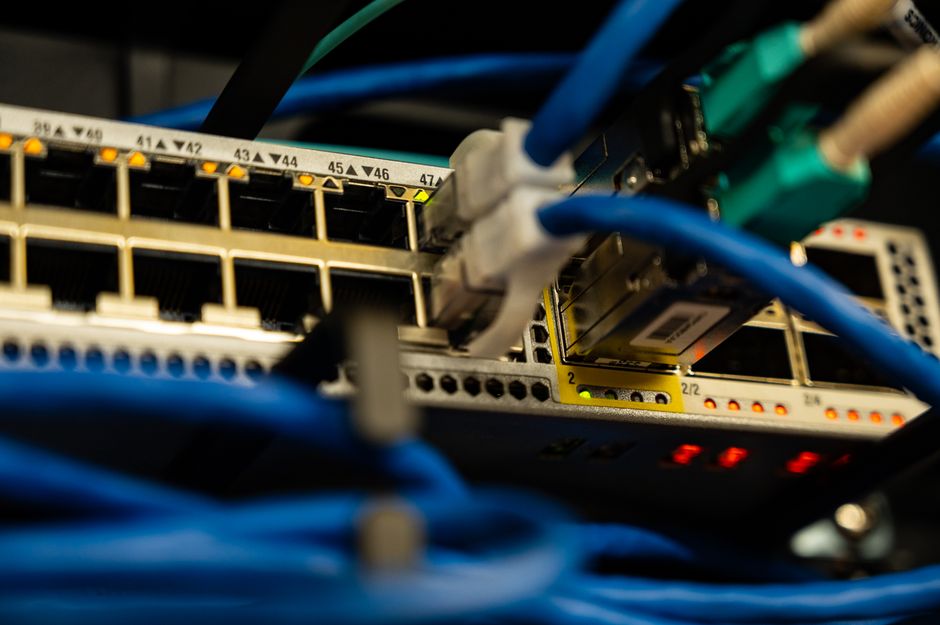
VLANs require router and switch hardware that actually supports 802.1Q VLAN tagging - most consumer ISP-supplied routers in the UK don’t. This is realistically a project for a UniFi setup, a pfSense or OPNsense router, a MikroTik device, or similar prosumer/small-business networking gear, alongside VLAN-capable managed switches if you have wired devices to segment too (unmanaged switches simply pass all VLAN traffic through untagged and can’t participate in the segmentation). If your current router is a standard ISP box, this is a “buy different hardware first” project, not a settings-menu change.
The Basic Setup Pattern
Exact steps vary a lot by hardware brand, but the underlying pattern is consistent across UniFi, pfSense/OPNsense and MikroTik alike:
- Create a new VLAN (commonly numbered 20, 30 or similar - anything other than your default VLAN 1) with its own subnet, e.g. 192.168.20.0/24, distinct from your main network’s subnet
- Set up a separate DHCP server or scope for that VLAN, so IoT devices get addresses in the new range automatically
- Create a dedicated Wi-Fi SSID broadcasting on that VLAN specifically (most consumer-grade access points support tagging an SSID to a VLAN even if the router hardware handling the VLAN itself is separate) - many people simply rename this “Home-IoT” and move every smart device’s Wi-Fi connection to it
- Write firewall rules blocking traffic from the IoT VLAN to your main VLAN by default, while allowing the IoT VLAN outbound internet access
- Add specific, narrow exceptions where genuinely needed - most commonly, allowing your Home Assistant server (on the main VLAN) to initiate connections into the IoT VLAN, since it needs to reach devices directly for local control
The Home Assistant Complication
This is the part that trips people up most often. Home Assistant frequently needs bidirectional discovery - not just “Home Assistant reaches out to a device,” but protocols like mDNS/Bonjour (used for discovering Chromecasts, HomeKit-adjacent devices and plenty of others) and SSDP that rely on multicast broadcast traffic, which doesn’t cross VLAN boundaries by default even with a permissive firewall rule allowing normal traffic. Fixing this properly means either running an mDNS repeater/reflector (UniFi has one built into newer controller software; pfSense and OPNsense can run `avahi` for the same purpose) or, for devices that support it, using a static IP and manual integration setup that bypasses the need for broadcast discovery entirely. This single issue is the most common reason people report “my automations broke after setting up VLANs,” so budget time for it specifically rather than treating it as an edge case.
Frequently Asked Questions
Will VLANs slow down my smart home devices?
No meaningful difference for typical smart home traffic - VLAN tagging and firewall rule processing on modern router hardware (even budget prosumer gear) has negligible overhead for the low-bandwidth traffic most smart devices generate. The exception is genuinely underpowered routing hardware doing heavy deep packet inspection alongside VLAN routing, which is a hardware sizing issue rather than a VLAN-specific one.
Can I put my Wi-Fi security cameras on the IoT VLAN too, or should they be separate again?
Many people do add a third VLAN specifically for cameras, separate from other IoT devices, since cameras handle genuinely sensitive footage and often need different firewall rules (e.g. allowing NVR software on the main network to pull streams, while still blocking the cameras from reaching anything else). It’s a reasonable extra step once the basic two-VLAN setup is working, not a requirement to start with.
Does this replace the need to keep device firmware updated?
No - VLANs limit the blast radius if a device is compromised, they don’t prevent the compromise itself. Keeping device firmware and companion apps updated is still the first line of defence; VLAN segmentation is a second layer for when that first line fails.
Related guides
 GUIDE
GUIDE
Setting Up a Mosquitto MQTT Broker for Home Assistant
MQTT is the lightweight messaging protocol sitting quietly underneath a huge amount of the smart home…
 GUIDE
GUIDE
Home Assistant Scenes, Scripts and Automations: What’s the Difference?
Home Assistant gives you three separate tools that all sound like they could do the same…
 GUIDE
GUIDE
Setting Up Automations in the Apple Home App: A Complete UK Guide
The Apple Home app has quietly become a genuinely capable automation platform, not just a remote…