Backing Up and Restoring Home Assistant Properly
Setting up automatic Home Assistant backups, storing them off-device, and actually testing a restore before you need one for real.
Contents
- What Home Assistant’s Built-In Backup Actually Covers
- Step 1: Create Your First Manual Backup
- Step 2: Automate It So You Don’t Have to Remember
- Step 3: Actually Test a Restore Before You Need One
- Restoring From a Backup
- A Real Disaster-Recovery Walkthrough: When an SD Card Dies
- What Backups Don’t Protect Against
- The Zigbee/Z-Wave Gotcha a Backup Alone Doesn’t Solve
- Frequently Asked Questions
- How often should I actually be backing up?
- Can I move my entire Home Assistant setup to new hardware using a backup?
It’s an unglamorous topic compared to a flashy new automation, but a proper backup routine is genuinely one of the highest-value things you can set up in Home Assistant - and one of the most commonly skipped until after something’s already gone wrong. A corrupted SD card or a failed update can wipe months of carefully built automations in seconds; a working backup turns that from a disaster into a ten-minute inconvenience.
What Home Assistant’s Built-In Backup Actually Covers
Home Assistant OS and Supervised installations include a built-in backup feature under Settings → System → Backups that captures your entire configuration - automations, dashboards, integrations, add-ons and their settings - as a single restorable file. This is different from, and doesn’t replace, backing up any external services you rely on (a separate MQTT broker’s own data, for instance), but it covers the vast majority of what actually matters for a typical setup.
Step 1: Create Your First Manual Backup
- Go to Settings → System → Backups
- Click Create Backup, choose Full backup (rather than partial) for your first one
- Wait for it to complete - larger installations with more history can take several minutes
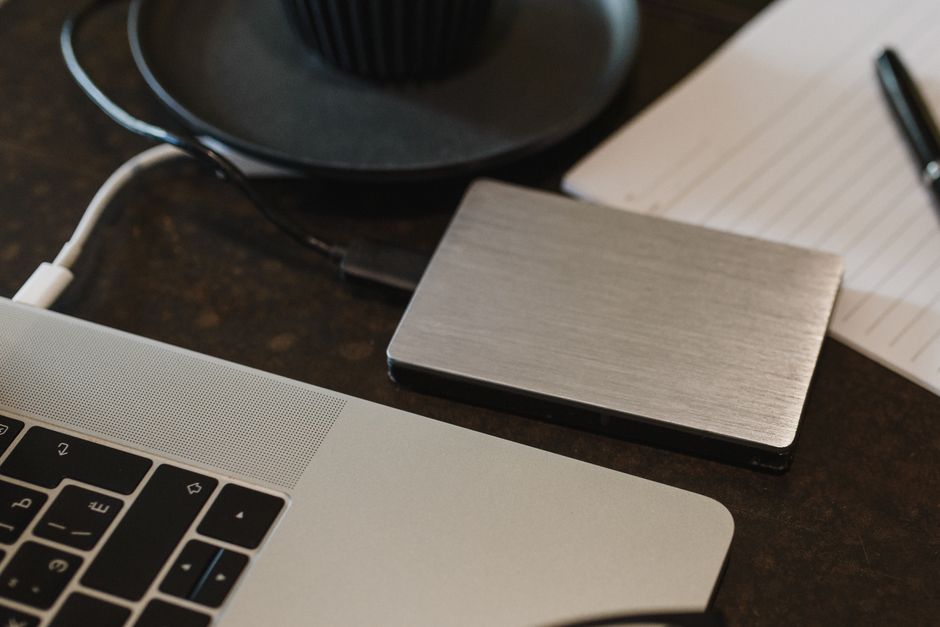
- Download the resulting backup file to somewhere off the Home Assistant device itself (a laptop, a cloud storage folder) - a backup stored only on the same SD card it’s protecting against is not a real backup
Step 2: Automate It So You Don’t Have to Remember
Manual backups only protect you if you actually remember to run them regularly, which in practice most people don’t. Two reliable routes to automate this:
- The built-in schedule - recent Home Assistant versions let you set an automatic backup schedule directly in the Backups settings (e.g. weekly), which is the simplest option and requires no add-ons
- The Google Drive/Dropbox backup add-on - community add-ons exist that automatically create a backup on a schedule and upload it directly to cloud storage, which additionally solves the “off-device storage” requirement from Step 1 in one go
Whichever route you choose, the goal is the same: a backup that happens automatically, and that lives somewhere other than the same physical device it’s backing up.
Step 3: Actually Test a Restore Before You Need One
A backup you’ve never restored is an assumption, not a safety net. If you have spare hardware (an old Raspberry Pi, a spare SD card), it’s worth doing a genuine test restore onto separate hardware at least once - this confirms the backup file is actually valid and that you know the restore process, rather than discovering a problem with either for the first time during a real emergency.
Restoring From a Backup
- On a fresh Home Assistant installation, you’ll be offered the option to restore from a backup during initial onboarding - upload your backup file at this point
- Alternatively, from an existing running installation, go to Settings → System → Backups, upload the backup file, and select Restore
- A full restore will overwrite the current configuration entirely - if you’re restoring onto a system with other changes you want to keep, consider a partial restore of specific add-ons/settings instead
A Real Disaster-Recovery Walkthrough: When an SD Card Dies
It’s worth knowing what this actually looks like in practice, rather than just trusting the process in the abstract. If your SD card or drive fails outright: buy a replacement (keeping a spare on hand is cheap insurance in itself), flash a fresh Home Assistant OS image onto it using the official Home Assistant flasher tool, boot it, and go through initial onboarding as if setting up for the first time. When onboarding reaches the point of asking whether you want to restore from a backup, upload your most recent backup file. For a typical household setup, this whole process - from noticing the failure to being fully restored - realistically takes 30-60 minutes, most of which is the backup file itself uploading and restoring, not manual configuration work. This is the entire reason the earlier steps matter: the difference between this being a mildly annoying hour and a genuinely upsetting loss of months of work is entirely down to whether a recent, off-device backup existed beforehand.
What Backups Don’t Protect Against
- Hardware failure of the SD card/drive itself during the backup process - this is exactly why off-device storage matters; a backup sitting on the same failing drive is no protection at all
- A bad automation you deliberately want to keep - backups restore what was there, mistakes included; they’re not a substitute for testing automations carefully before deploying (see our first automation guide for testing tools)
The Zigbee/Z-Wave Gotcha a Backup Alone Doesn’t Solve
This one catches people out because it seems like it should just work and mostly does, with one specific exception. If you’re using Zigbee2MQTT or a similar Zigbee/Z-Wave setup, a full Home Assistant backup does include the coordinator’s network state (the network key, device pairing list, and so on) as part of the add-on’s own data, so restoring onto the same physical coordinator dongle genuinely does bring every paired device straight back with no re-pairing needed. The gotcha is specifically when the coordinator hardware itself has also failed or is being replaced (rather than just the SD card) - a brand new coordinator generates its own fresh network identity, and restoring your old backup onto it doesn’t magically transfer your devices’ pairing to the new radio hardware. In that specific scenario, every Zigbee device needs re-pairing regardless of how good your backup is, since the pairing lives on a chain of trust between the coordinator’s radio and each device that a config file alone can’t recreate. Worth knowing before assuming a backup makes you completely immune to coordinator failure - it protects your automations and configuration completely, but not a dead radio chip.
Frequently Asked Questions
How often should I actually be backing up?
Weekly is a reasonable default for most households - frequent enough that you’d only lose a few days of changes in a worst case, without generating an excessive number of backup files to manage. If you’re actively rebuilding automations during a specific project, a manual backup before and after each session is worth the extra minute.
Can I move my entire Home Assistant setup to new hardware using a backup?
Yes - restoring a full backup onto fresh hardware during initial onboarding is the standard way to migrate Home Assistant to a new Pi, mini PC, or the Home Assistant Green, and it brings across your entire configuration rather than requiring you to rebuild anything manually.
If you haven’t set this up yet, do it now rather than after your next update - it’s the single cheapest insurance policy in this entire hobby.
Related guides
 GUIDE
GUIDE
Should You Put Smart Home Devices on a Separate VLAN? A UK Guide
Every smart home device on your network is, from a security standpoint, a small computer running…
 GUIDE
GUIDE
Setting Up a Mosquitto MQTT Broker for Home Assistant
MQTT is the lightweight messaging protocol sitting quietly underneath a huge amount of the smart home…
 GUIDE
GUIDE
Home Assistant Scenes, Scripts and Automations: What’s the Difference?
Home Assistant gives you three separate tools that all sound like they could do the same…