Building a Wall-Mounted Tablet Dashboard for Home Assistant
Turning an old Android tablet into a permanent, always-on Home Assistant control panel, including the setup details people usually get wrong.
Contents
- Choosing Hardware
- Step 1: Install a Kiosk Browser App
- Kiosk App Options: Fully Kiosk Browser vs the Alternatives
- Step 2: Build a Dashboard Specifically for This Tablet
- Step 3: Keep the Tablet Charged and Mounted
- Wiring: PoE vs a Standard Charger Cable
- Surviving a Power Cut or Router Reboot
- Common Problems and Fixes
- Frequently Asked Questions
- Can I use an old iPad instead of an Android tablet?
- Does the tablet need to stay connected to Wi-Fi to keep working?
A phone-based dashboard works fine for most day-to-day control, but a wall-mounted tablet running Home Assistant permanently is a genuinely different experience - always on, always visible, no unlocking a phone to check whether the door’s locked. Here’s how to actually build one, including the parts people usually get wrong the first time.
Choosing Hardware
You don’t need a purpose-built smart display for this. An old Android tablet you’re no longer using day to day is the cheapest and most common route - anything running Android 8 or later with a reasonably modern browser is generally fine for a dashboard that’s mostly static with occasional taps. If you’re buying new specifically for this, a budget Android tablet is more cost-effective than an iPad, mainly because the kiosk software options below are more mature and flexible on Android.
Check Budget Android Tablets on Amazon UK →Affiliate link
Step 1: Install a Kiosk Browser App
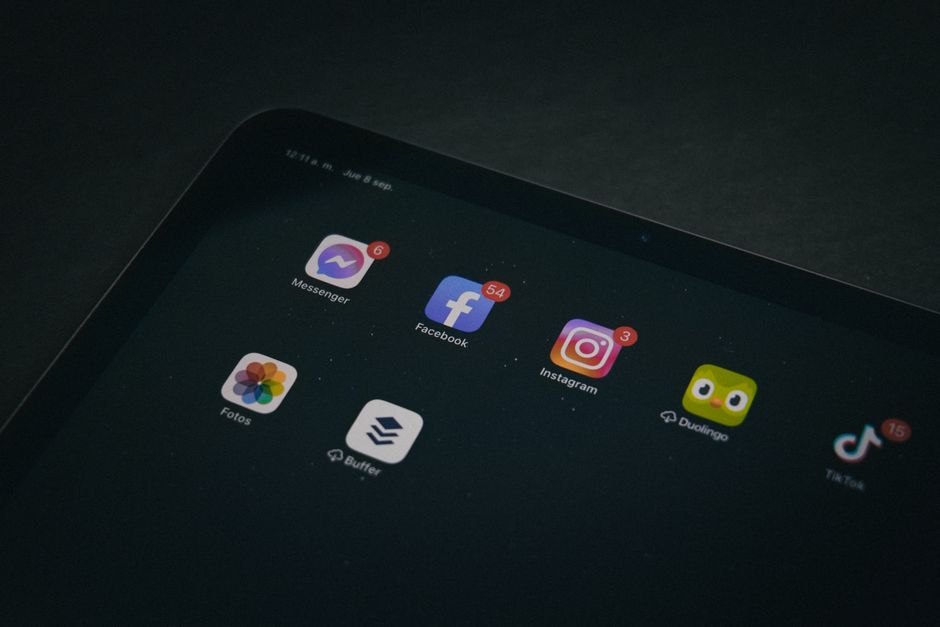
Fully Kiosk Browser (free with a paid unlock for extra features) is the most widely used option for this specific job - it loads your Home Assistant dashboard full-screen, keeps the screen on permanently, and can auto-restart the browser if it crashes or loses connection, which matters far more than it sounds for something meant to run unattended for months at a time.
- Install Fully Kiosk Browser from the Google Play Store (or sideload the APK if your tablet doesn’t have Play Store access)
- Set the Start URL to your Home Assistant dashboard address
- Enable Motion Detection to wake the screen on movement (requires the front camera, but avoids needing to physically tap the screen just to check status)
- Enable Auto Reload to periodically refresh the page, which helps avoid the dashboard silently going stale after days of continuous uptime
Kiosk App Options: Fully Kiosk Browser vs the Alternatives
Fully Kiosk Browser is the default recommendation because it’s the most mature, but it’s worth knowing the alternatives exist. WallPanel is a free, open-source option built specifically for Home Assistant dashboards, with a lighter feature set but no paid unlock needed for things like motion detection. The Home Assistant Companion App itself, set to a kiosk-style “full screen dashboard” mode, is the simplest option if you don’t need auto-restart or motion-wake behaviour, and has the advantage of being the same app most people already use on their phone, so there’s nothing new to learn. For a tablet that’s genuinely going to run unattended for months, Fully Kiosk Browser’s auto-restart-on-crash feature earns its keep - a dashboard that silently stops responding and needs someone to notice and manually restart it defeats a lot of the point of a permanently-mounted display.
Step 2: Build a Dashboard Specifically for This Tablet
Don’t just point the tablet at your everyday phone dashboard. A wall-mounted screen benefits from a deliberately simplified view - larger touch targets, fewer tabs, and the handful of controls actually useful from that specific spot in the house (often the front door, main living area lights, and thermostat). See our Lovelace dashboard guide for building this, and assign it as this specific tablet’s default dashboard under Settings → Dashboards → assign to user/device.
Step 3: Keep the Tablet Charged and Mounted
Running a tablet’s battery permanently at 100% while plugged in continuously does shorten battery lifespan over time, but for a device that’s essentially a permanently wired display, this is a reasonable trade-off - most people budget for eventually replacing the tablet’s battery or the tablet itself every few years rather than treating it as a device to preserve long-term. Wall mounts designed for tablets (rather than repurposed phone mounts) generally route the charging cable neatly behind the mount itself, which is worth paying slightly more for over a generic clip mount.
Check Tablet Wall Mounts on Amazon UK →Affiliate link
Wiring: PoE vs a Standard Charger Cable
A standard USB charger cable run behind the wall mount is the simplest approach and fine for most installs, but if you’re mounting the tablet somewhere with weak Wi-Fi (an entryway on the far side of the house from your router, for instance), it’s worth considering a Power over Ethernet (PoE) splitter instead - a single Ethernet cable run to the mount supplies both power and a genuinely wired network connection via a small USB-C adapter, which sidesteps Wi-Fi reliability entirely for the one device where connectivity dropping is most visible and annoying. This is more involved to install, since it means running Ethernet cable rather than just a power cable, so it’s only worth the extra effort if Wi-Fi reliability at that specific spot is a known problem rather than a hypothetical one.
Surviving a Power Cut or Router Reboot
A wall tablet left permanently plugged in should come back on its own after a brief power interruption, but two settings are worth checking specifically: enable Auto Start on Boot in Fully Kiosk Browser’s settings so the kiosk app relaunches automatically without anyone needing to physically unlock and open it, and disable any lock screen PIN/pattern on the tablet itself, since a locked tablet that’s rebooted will just sit at a lock screen rather than returning to the dashboard. Given the tablet is a dedicated fixed display rather than a personal device carrying sensitive data, removing the lock screen is a reasonable trade-off here.
Common Problems and Fixes
- Screen burn-in on older tablets - enable a lower brightness setting or a screensaver/dim mode after a period of inactivity rather than running full brightness permanently
- Dashboard freezing after days of uptime - the Auto Reload setting in Fully Kiosk Browser specifically addresses this; without it, some tablets’ browsers can silently stop updating live data after extended periods
- Tablet losing Wi-Fi and never reconnecting - check your router’s power-saving settings for that device aren’t putting it into an aggressive sleep state; a permanently-plugged-in wall tablet doesn’t need battery-saving Wi-Fi behaviour
Frequently Asked Questions
Can I use an old iPad instead of an Android tablet?
Yes, using Safari in a simple home-screen-shortcut “full screen” mode, though the dedicated kiosk features (auto-restart, motion-wake, scheduled reload) that Fully Kiosk Browser offers on Android are more limited on iOS - it works, but Android is the more purpose-built route for this specific use.
Does the tablet need to stay connected to Wi-Fi to keep working?
Yes - a browser-based dashboard needs an active connection to your Home Assistant instance to show live data and accept commands. If Wi-Fi drops, the dashboard will show stale data until the connection returns.
Once your wall tablet is running, pairing it with a genuinely useful presence-detection automation makes it show genuinely relevant information rather than just a static device list.
Related guides
 GUIDE
GUIDE
Should You Put Smart Home Devices on a Separate VLAN? A UK Guide
Every smart home device on your network is, from a security standpoint, a small computer running…
 GUIDE
GUIDE
Setting Up a Mosquitto MQTT Broker for Home Assistant
MQTT is the lightweight messaging protocol sitting quietly underneath a huge amount of the smart home…
 GUIDE
GUIDE
Home Assistant Scenes, Scripts and Automations: What’s the Difference?
Home Assistant gives you three separate tools that all sound like they could do the same…