The Complete Guide to Home Assistant in the UK: From Unboxing to Fully Automated
Most people’s first encounter with Home Assistant is a single frustration: a smart plug that only works through its own […]
Contents
- What Home Assistant Actually Is (and Isn’t)
- Do You Actually Need This?
- Choosing Your Hardware
- Installing Home Assistant: The First Hour
- Understanding the Protocol Landscape Before You Buy Anything
- Setting Up Your First Wireless Coordinator
- Adding Your First Devices
- Your First Automation
- Scenes, Scripts and Automations: Getting the Building Blocks Right
- Building a Dashboard You’ll Actually Use
- Notifications and Voice: Making the House Talk Back
- Getting Serious: Presence Detection, Node-RED and ESPHome
- Network Hygiene: The Unglamorous Part That Actually Matters
- Backups: The Step Everyone Skips Until They Regret It
- If You’re Coming From Somewhere Else: Migration
- Living With It: A Realistic Example
- Frequently Asked Questions
- How long does it realistically take to get a full setup running?
- Do I need to know how to code?
- What does this actually cost, all in?
- What happens if the Home Assistant box itself dies?
Most people’s first encounter with Home Assistant is a single frustration: a smart plug that only works through its own app, a bulb that stops responding when the manufacturer’s cloud has a bad day, or three separate apps for three separate brands that refuse to talk to each other. Home Assistant exists to fix exactly that - a single, self-hosted platform that pulls every smart device in your home, regardless of brand or protocol, into one place you actually control. This guide is the complete journey: what it is, what hardware to actually buy, how to get it running, and how to go from a blank install to a genuinely automated home, with links out to our full step-by-step guides at every stage where you’ll want more depth than a single section here can give.
What Home Assistant Actually Is (and Isn’t)
Home Assistant is free, open-source home automation software that runs on hardware you own, in your own house, rather than on a manufacturer’s servers. It isn’t a single device you buy - it’s an operating system-like platform that installs onto a small computer (or a virtual machine, or a purpose-built box) and then talks to your existing smart devices through one of over two thousand integrations, covering nearly every major brand and protocol on the market. Once a device is integrated, Home Assistant exposes it as an “entity” that can be viewed on a dashboard, controlled manually, and - critically - referenced in automations alongside every other entity in your house, regardless of which company made it.
This is the single biggest thing that separates it from Google Home, Amazon Alexa or Apple Home: those platforms are walled gardens that work best with their own or officially-partnered devices, and their automation logic lives on someone else’s servers. Home Assistant is deliberately protocol-agnostic and, for the devices that support it, runs entirely locally - meaning your lights still turn on when your internet goes down, and no third party is logging when you get home. It also isn’t a project reserved for people who already know how to code. The days of needing to hand-edit YAML files for everything are largely gone; the modern UI-based automation editor, described in full in our step-by-step guide to writing your first automation, covers the overwhelming majority of what most households actually want to do.
Do You Actually Need This?
Worth being honest about this before spending any money. If you have a handful of Alexa-compatible devices and you’re happy with voice control through one ecosystem, Home Assistant is genuinely more setup than you need - Alexa or Google Home routines will cover you fine, and our guides to setting up Alexa routines or Google Home routines are the faster path. Home Assistant earns its setup cost once you have devices from more than two or three different ecosystems, once cloud dependency starts genuinely bothering you (an internet outage shouldn’t mean your hallway light won’t turn on), once you want automation logic more sophisticated than “if this then that,” or once you’ve been burned by a discontinued product - our piece on future-proofing a smart home against discontinued ecosystems covers why this matters more than people expect.
The honest tradeoff: Home Assistant asks more of you upfront than a plug-and-play ecosystem, in exchange for genuinely owning your setup rather than renting it from a company that might change the terms, raise a subscription price, or shut down a product line entirely. If that trade sounds worth making, the rest of this guide is the actual path through it.
Choosing Your Hardware
Home Assistant needs somewhere to actually run, and this is the first real decision, since it shapes almost everything downstream. There are three realistic paths for a UK household:
- Home Assistant Green - the official, purpose-built appliance from Nabu Casa (the company behind the project). It’s a small fanless box, roughly £80-100, that arrives with Home Assistant pre-installed and just needs powering on and connecting to your network. This is genuinely the right starting point for most people reading this for the first time - it removes an entire category of setup friction (OS flashing, storage selection, power supply quality) for a modest premium over building your own.
- A Raspberry Pi (4 or 5, 4GB+ RAM recommended) - the traditional DIY route, typically £60-100 once you’ve bought the board, a case, a good power supply and a decent microSD card or SSD. More setup work than the Green, but familiar territory if you’ve used a Pi before, and it’s the option with the most community documentation behind it if something goes wrong.
- An old PC, NUC or a virtual machine on an existing server - if you already have spare hardware sitting around (an old laptop, a NAS capable of running VMs, a Proxmox or Unraid box), Home Assistant runs happily as a VM with modest resource requirements (2 CPU cores, 4GB RAM is comfortable), and this is the zero-additional-cost route if the hardware already exists.
One hardware decision genuinely worth making early rather than retrofitting later: if you plan to use Zigbee devices (and most people building a serious setup do, for reasons covered in the next section), decide now whether you want a USB Zigbee coordinator plugged directly into your Home Assistant box, or a separate network-attached coordinator. A USB stick is simpler and cheaper to start with; a network coordinator (like the SkyConnect or a Zigbee-to-Ethernet adapter) means you can position the radio away from Wi-Fi interference and physically separate from the server itself, which matters more than people expect once a mesh grows past a dozen devices.
Installing Home Assistant: The First Hour
Our full beginner’s guide to getting started covers this step in full detail, but the shape of it is consistent regardless of which hardware you chose: flash the Home Assistant Operating System image onto your storage (using the official Raspberry Pi Imager or balenaEtcher, both free), boot the device, and wait a few minutes for the initial setup to complete on the network. Home Assistant then becomes reachable at homeassistant.local:8123 from any device on the same network, where an onboarding wizard walks you through creating your admin account, confirming your location (important - this drives sunrise/sunset-based automations later, and UK latitude specifically matters for anything seasonal), and choosing which integrations to enable first.
Resist the urge to add every integration the wizard suggests immediately. Start with whatever you already own - your router, maybe a smart TV, anything already on the network - confirm the basics are working, and build outward from there deliberately rather than all at once. This is also the point to decide on remote access: Nabu Casa’s optional subscription (roughly £6.50/month) handles secure remote access and cloud voice assistant integration with no port-forwarding or dynamic DNS configuration required, and for most households it’s worth the cost purely for the setup time it saves versus doing it yourself.
Understanding the Protocol Landscape Before You Buy Anything
This is the step most newcomers skip, buy devices first, and regret. Smart home devices talk over one of several different wireless protocols, and which one a device uses determines how reliable it’ll be, whether it needs a hub, and how well it’ll survive the next decade of ecosystem changes. Our full breakdown in Zigbee vs Matter vs Wi-Fi covers this properly, but the short version: Wi-Fi devices need no extra hub but add load to your router and are usually cloud-dependent unless specifically marked local-only; Zigbee (and the less common Z-Wave) devices form their own low-power mesh network, need a coordinator, and are generally the most reliable choice for battery-powered sensors and switches at scale; Matter is the newer unifying standard designed to work across ecosystems natively, built on top of either Wi-Fi or Thread depending on the device.
Thread specifically is worth understanding before buying anything Matter-branded, since it’s the low-power mesh transport increasingly used underneath Matter devices - our Thread explained guide and What is Matter? cover both properly. The practical upshot for a Home Assistant build specifically: a Zigbee mesh, run through Home Assistant’s own coordinator, remains the single most battle-tested, fully-local option for the bulk of your sensors and switches, with Matter increasingly viable for newer purchases and genuinely useful for its multi-admin capability if household members also want a device controllable from Apple Home or Google Home directly.
Setting Up Your First Wireless Coordinator
If you’re going the Zigbee route - and for most households building a serious setup, this remains the recommended core - the next step is getting a coordinator running. Zigbee2MQTT is the most widely used approach within the Home Assistant community: it pairs your USB or network Zigbee radio, exposes every paired device over MQTT (which needs its own lightweight broker - Mosquitto is the standard choice, and our Mosquitto setup guide covers installing it as a Home Assistant add-on in about ten minutes), and gives you a genuinely excellent web interface for managing your device mesh, checking signal quality between devices, and applying firmware updates. Our complete Zigbee2MQTT setup guide walks through the full process from an unopened coordinator to your first paired device.
A genuinely important piece of context here: Zigbee is a mesh network, not a star network - every mains-powered Zigbee device (plugs, most bulbs) acts as a repeater for the signal, extending the mesh’s range and reliability, while battery devices (sensors, buttons) only ever talk to the mesh, never repeat it. This means the order you add devices in actually matters a little - getting two or three mains-powered plugs or bulbs spread around the house early gives battery sensors added later a much stronger, shorter hop to reach the coordinator, rather than everything relying on a single weak direct link.
Adding Your First Devices
With a coordinator running, adding devices becomes genuinely quick - most Zigbee devices pair by putting them into pairing mode (usually a button press pattern specific to the device, in its manual) while Zigbee2MQTT’s “permit join” toggle is active, and they appear in Home Assistant’s entity list within seconds. Wi-Fi and Matter devices generally pair through their own manufacturer app first, then get added to Home Assistant via the relevant integration (Settings > Devices & Services > Add Integration) or, for Matter specifically, via a QR code scan directly in Home Assistant.
Once you have a handful of devices in, spend ten minutes organising them into Areas (Settings > Areas, Labels & Zones) that match your actual rooms, rather than leaving everything in one flat list - this single piece of housekeeping is what makes every dashboard, automation and voice command you build afterward dramatically easier to work with, since Home Assistant lets you reference “all lights in the living room” as a group rather than naming each bulb individually.

Your First Automation
This is where Home Assistant starts to feel genuinely different from a plug-and-play ecosystem. The UI automation editor (Settings > Automations & Scenes > Add Automation) uses a straightforward trigger/condition/action structure: a trigger defines what starts the automation (a motion sensor firing, a time of day, a device state changing), an optional condition narrows when it’s allowed to actually run (only if it’s after sunset, only if someone’s home), and the action defines what happens. Our full step-by-step first automation guide builds a complete motion-activated hallway light from scratch, which remains the best genuinely useful starting project - simple enough to succeed on the first try, immediately useful enough that you’ll notice it working every day.
Scenes, Scripts and Automations: Getting the Building Blocks Right
Once you’re past your first automation, it’s worth understanding the three related-but-distinct building blocks Home Assistant gives you, since mixing them up is the most common source of confused, hard-to-maintain setups later. A scene is a saved snapshot of specific entity states you can recall instantly (“Movie Night” sets three lights to specific dim levels and colours). A script is a reusable sequence of actions, optionally with delays and conditions, that can be called from multiple places. An automation is the trigger/condition/action wrapper that decides when a scene or script actually runs. Our full breakdown of scenes vs scripts vs automations goes through concrete examples of when to reach for each one - getting this right early saves a lot of restructuring six months in, once your setup has grown past a handful of simple rules.
Building a Dashboard You’ll Actually Use
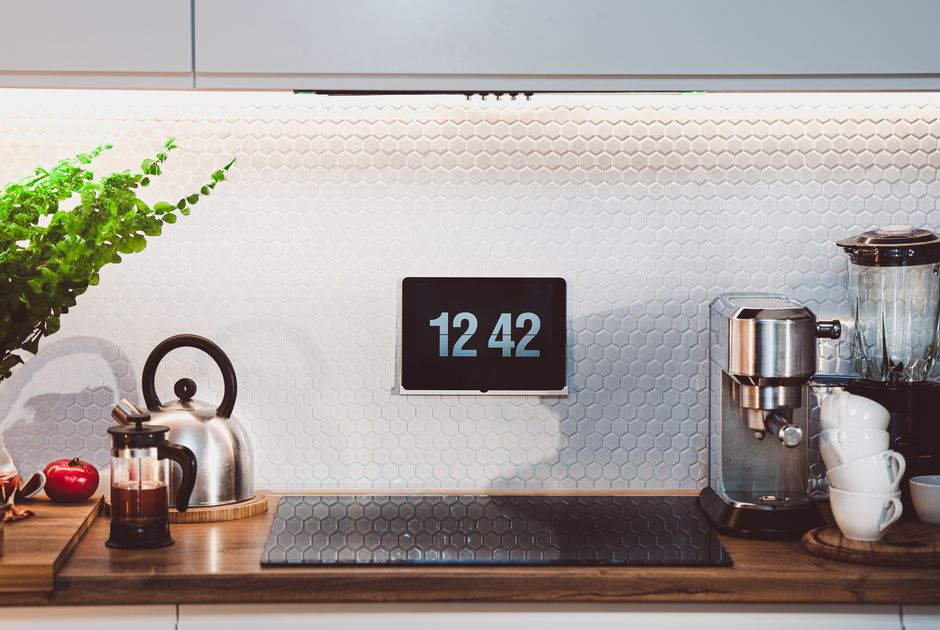
Home Assistant auto-generates a default dashboard from your entities, and it’s genuinely fine for the first week or two, but it doesn’t scale - once you’re past twenty or thirty entities, an auto-generated flat list becomes something nobody in the household wants to actually navigate. Building a proper Lovelace dashboard (Home Assistant’s dashboard system) organised by room and by what you actually check day to day is worth the couple of hours it takes - our Lovelace dashboard guide covers the full process card by card. If you want a genuinely always-visible household control point rather than something buried in a phone app, a wall-mounted tablet dashboard is one of the more satisfying upgrades in a mature setup - a cheap Android tablet running fully kiosk-mode, permanently showing your dashboard by the front door or in the kitchen, genuinely changes how often the household actually interacts with the system versus leaving it as something only one person understands.
Notifications and Voice: Making the House Talk Back
A smart home that detects things but never tells anyone about them isn’t doing its job, and this is a step people frequently under-build. Beyond basic mobile push notifications, Home Assistant supports spoken announcements through compatible speakers and Alexa-specific announcements - our complete notifications guide covers actionable notifications with response buttons, priority levels that bypass Do Not Disturb for genuinely urgent alerts, and avoiding the notification fatigue that makes people start ignoring the app entirely.
On the voice side, Home Assistant’s own Assist system, paired with Wyoming-protocol hardware like Home Assistant Voice Preview Edition, offers a genuinely local voice assistant option - no cloud round-trip, no recordings leaving your house. It’s not yet a like-for-like replacement for the polish of Alexa or Google Assistant for every use case, but for core home control commands it’s matured a great deal. Our local voice assistants guide covers what it can and can’t do today, honestly.
Getting Serious: Presence Detection, Node-RED and ESPHome
Once the basics are solid, three upgrades genuinely change what your setup is capable of. Presence detection - knowing reliably who’s actually home, not just whose phone last pinged the router twenty minutes ago - underpins a huge amount of genuinely useful automation logic (heating that only runs when someone’s actually in, lights that don’t turn on for an empty house), and doing it properly is harder than it sounds; our presence-detection guide covers the layered approach (router-based tracking plus a Bluetooth or app-based fallback) that avoids the false-negative problem plain Wi-Fi tracking has.
Node-RED offers a visual, flow-based alternative to the standard automation editor for genuinely complex logic - branching conditions, loops, and multi-step sequences that would be unwieldy in the standard UI editor - and our Node-RED setup guide covers installing it as an add-on and connecting it to your entities. ESPHome, meanwhile, lets you build and flash your own custom sensors and devices on cheap microcontrollers (ESP32/ESP8266 boards, often under £5 each), giving you genuinely custom hardware - a specific sensor combination no commercial product offers, or a repurposed old device - that integrates natively with Home Assistant with no cloud dependency at all; our ESPHome guide is the place to start once you’re ready for that step. As a worked example of the kind of quality-of-life automation this unlocks once your entity coverage is solid, Adaptive Lighting - automatically shifting brightness and colour temperature through the day - is one of the most consistently satisfying additions people make once their lighting setup is mature.

Network Hygiene: The Unglamorous Part That Actually Matters
A mature Home Assistant setup lives or dies on network reliability, and this is the part almost nobody thinks about until something starts misbehaving. Two things are worth setting up deliberately rather than reactively. First, if security is a genuine concern - and with dozens of internet-connected devices in the house, it’s a reasonable one - putting smart home devices on their own VLAN, isolated from your main network, contains the blast radius if any single device is ever compromised; our VLAN guide covers the setup and the genuine trade-offs. Second, Wi-Fi-based devices have their own specific failure patterns distinct from Zigbee - band-steering conflicts, DHCP lease issues, access point overload - covered fully in our Wi-Fi dropout troubleshooting guide, while Zigbee has its own separate interference sources (Wi-Fi channel overlap, USB 3.0 port interference on the coordinator itself) covered in our Zigbee interference guide. Both are worth reading before you have a problem, not after.
Backups: The Step Everyone Skips Until They Regret It
By the time your setup has real value to the household - heating automations, security integrations, months of tuned presence detection - it also has real cost if it’s lost. Home Assistant’s built-in backup system can run on a schedule and push copies off-device (to a NAS, cloud storage, or Nabu Casa’s own backup service), and setting this up properly, including actually testing a restore rather than assuming the backup file is good, is genuinely one of the highest-value hours you’ll spend on the whole project. Our backup and restore guide covers the full setup, including the specific gotchas (add-on configuration that doesn’t restore the way people expect, database size growing unmanageably large) that catch people out.
If You’re Coming From Somewhere Else: Migration
Plenty of people arrive at Home Assistant already owning a house full of devices tied to another ecosystem, rather than starting from scratch. If that’s you, our guide to migrating without losing your existing automations covers moving device-by-device rather than a disruptive all-at-once cutover, which is by far the less painful approach for a household that still needs the lights to work during the transition. If your existing automations specifically live in IFTTT, our IFTTT migration guide maps each applet type to its Home Assistant equivalent directly, applet by applet, rather than leaving you to work it out from scratch.
Living With It: A Realistic Example
It’s easy for a guide like this to read as a checklist of features rather than a picture of what day-to-day life with a finished setup actually looks like. For a genuine, warts-and-all account of what a mature setup actually runs, what’s worth the effort and what genuinely isn’t, see My Actual Home Assistant Setup - a first-person walkthrough of a real household’s configuration, including the automations that get used daily versus the ones that sounded good on paper and quietly got disabled.
Frequently Asked Questions
How long does it realistically take to get a full setup running?
Initial installation and your first automation is genuinely an afternoon’s work. A setup that covers a whole house properly - dashboard, notifications, presence detection, backups, a stable Zigbee mesh - is more realistically a project spread over a few weekends as devices get added gradually, not something to expect finished in one sitting.
Do I need to know how to code?
No - the UI-based automation editor covers the large majority of what most households want to build. YAML editing and scripting remain available for genuinely advanced cases, but they’re an option, not a requirement, for a fully functional setup.
What does this actually cost, all in?
The software itself is free. Hardware for the Home Assistant box typically runs £60-100 as a one-off cost. A Zigbee coordinator adds £20-40. Nabu Casa’s optional remote access subscription is around £6.50/month if you want it (not required). Beyond that, cost scales entirely with how many devices you add, exactly as with any other smart home ecosystem.
What happens if the Home Assistant box itself dies?
With regular backups in place (see the dedicated section above), recovery is a case of setting up fresh hardware and restoring the backup file - devices generally reconnect to a restored instance without needing to be re-paired, since their integration credentials and network identities are preserved in the backup itself.
Related guides
 GUIDE
GUIDE
Should You Put Smart Home Devices on a Separate VLAN? A UK Guide
Every smart home device on your network is, from a security standpoint, a small computer running…
 GUIDE
GUIDE
Setting Up a Mosquitto MQTT Broker for Home Assistant
MQTT is the lightweight messaging protocol sitting quietly underneath a huge amount of the smart home…
 GUIDE
GUIDE
Home Assistant Scenes, Scripts and Automations: What’s the Difference?
Home Assistant gives you three separate tools that all sound like they could do the same…